Roblox creators in 2026 need to master sound design to stay competitive. This ultimate guide explains how to make audio on Roblox including uploading custom files and managing permissions. Learn about spatial audio and the latest Creator Dashboard features. We cover technical requirements like MP3 formats and file sizes to help you optimize your game experience. Follow our step by step instructions for a seamless audio integration process. Whether you are a beginner or an expert this article provides the insights needed for high quality soundscapes. Explore the world of Roblox sound design and improve your player engagement today.
How do I upload audio to Roblox in 2026?
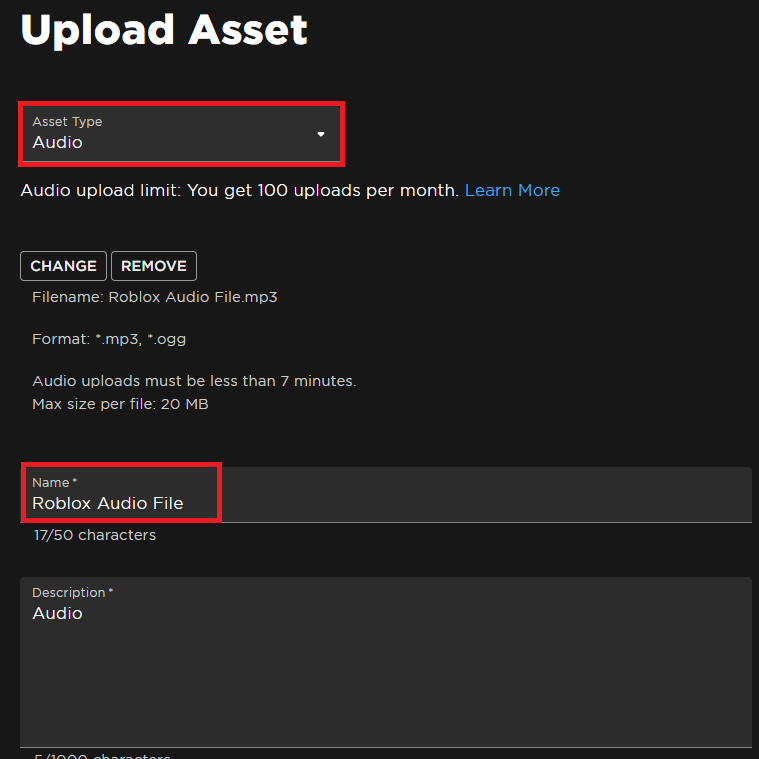
In 2026, you upload audio by visiting the Roblox Creator Dashboard, selecting Development Items, and clicking on Audio. Upload your MP3 or OGG file, add a title, and confirm the upload. Many accounts now have a monthly allocation of free uploads. Once approved by moderation, you can use the unique Asset ID in your games.
What are the audio file limits on Roblox?
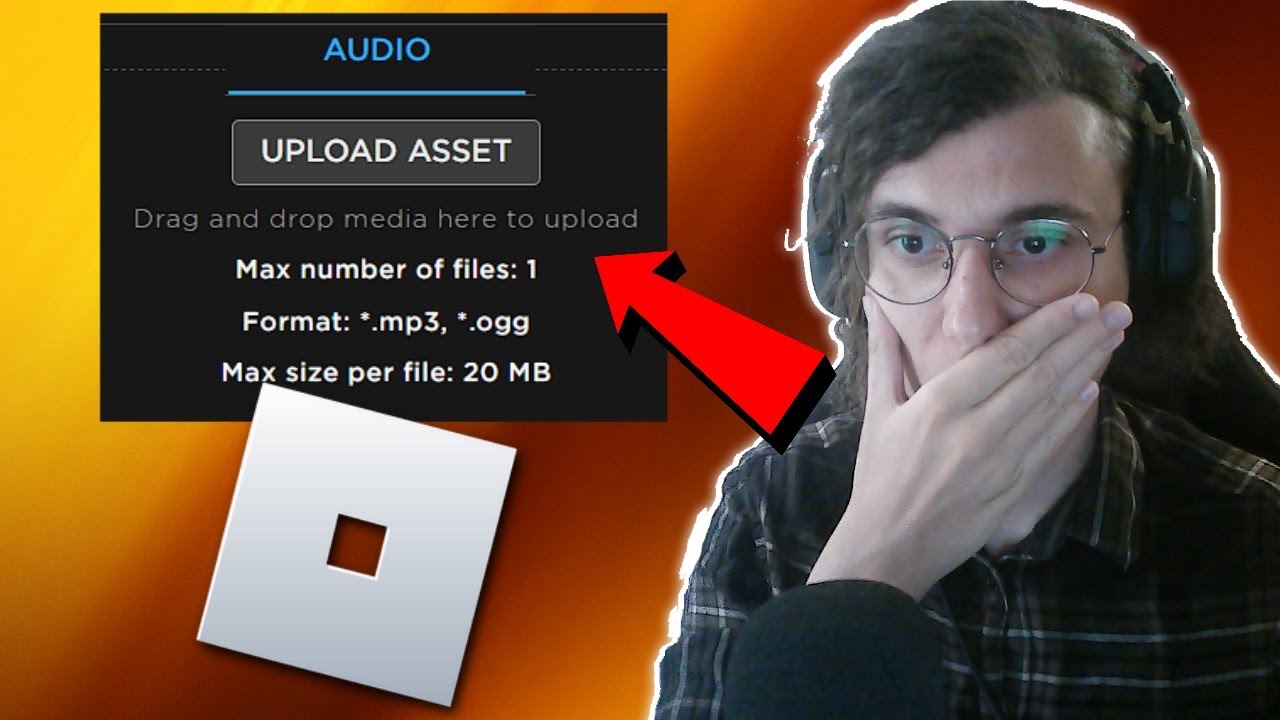
Roblox currently supports MP3 and OGG formats with a maximum file size of 30MB per upload in 2026. This allows for roughly 7 to 10 minutes of high-quality audio. It is best to keep sound effects short and optimize music tracks to ensure fast loading times for players with varying internet speeds and hardware.
How do I fix the permission denied error for audio?
The Permission Denied error occurs when an experience does not have access to an audio asset. To fix this, go to the Creator Dashboard, find your audio asset, and navigate to the Permissions section. Add your game Universe ID to the list of allowed experiences. This ensures your custom audio plays correctly within your specific project.
What is spatial audio in Roblox Studio?
Spatial audio allows sounds to emanate from specific 3D locations within a game world. By placing a Sound object inside a Part or Attachment, the audio will dynamically change volume and panning based on the player camera position. This is essential for creating immersive environments, providing realistic footsteps, environmental ambience, and directional cues in 2026.
Can I use copyrighted music on Roblox?
No, you should not use copyrighted music without explicit permission from the rights holder. Roblox uses advanced AI detection to flag and remove copyrighted material. To avoid strikes, use royalty-free music, create your own tracks, or use the thousands of pre-approved songs available in the Roblox Creator Store. Unauthorized uploads can lead to account warnings or bans.
How to Make Audio on Roblox: The Ultimate 2026 Creator Guide
As we move through 2026, the PC gaming landscape has seen a massive shift toward user-generated content, with Roblox leading the charge. For creators, high-fidelity audio has become the gold standard for success. In this comprehensive guide, we will explore how to make audio on Roblox, from basic uploads to advanced spatial sound design. With over 100 million active creators globally, standing out requires more than just good visuals; it requires an immersive auditory experience. We will cover the latest Creator Dashboard updates, the 2026 audio permission system, and how to optimize your soundscapes for high-end gaming PCs. This article addresses key questions such as how to upload files, how to manage copyright, and how to use the new AI-enhanced sound tools available this year.
Understanding the 2026 Roblox Audio Ecosystem
In 2026, the way we handle audio on Roblox has evolved. The platform now supports higher bitrates and more complex spatialization techniques that take full advantage of modern surround sound systems. To get started, you must familiarize yourself with the Creator Dashboard. This centralized hub is where all your assets, including audio, are managed. Roblox currently favors MP3 and OGG formats, with a strong emphasis on file optimization to ensure fast loading times for players on all devices. High-quality audio can significantly increase player retention by providing a professional feel to your experiences. Whether it is the subtle click of a menu button or the roaring engine of a futuristic vehicle, every sound counts.
How do I upload audio to Roblox in 2026?
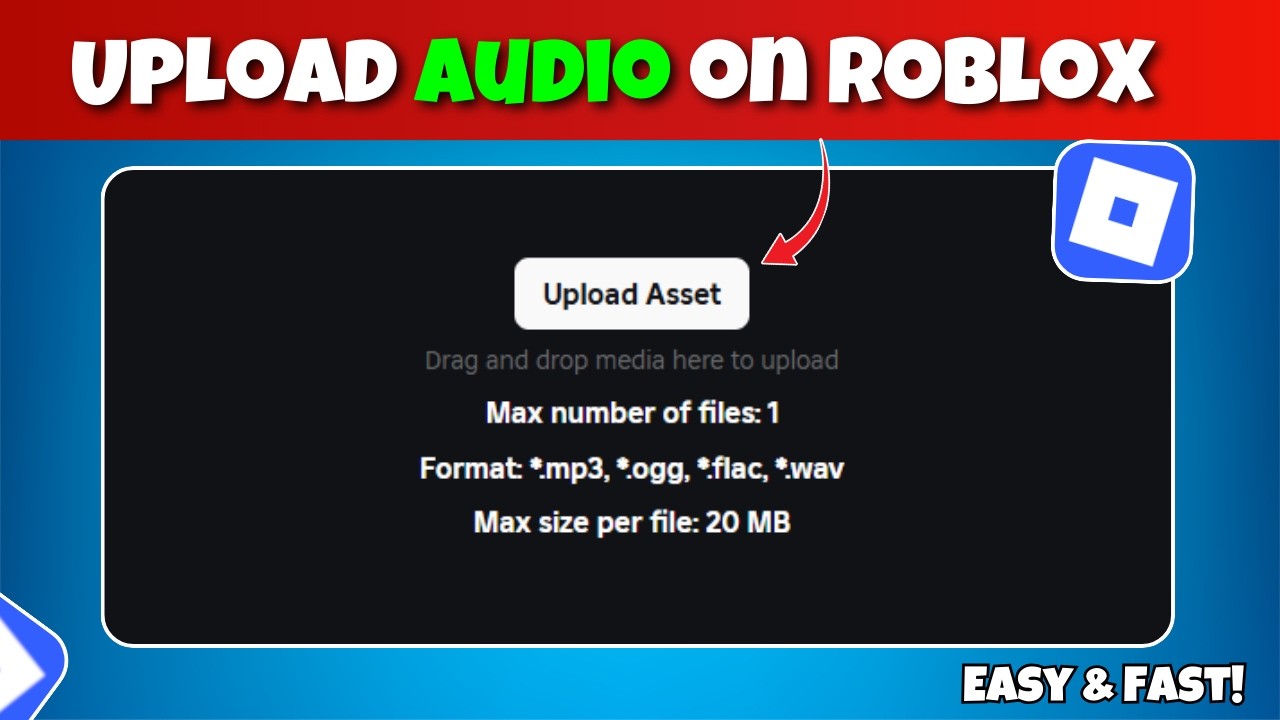
To upload audio, go to the Roblox Creator Dashboard and navigate to the Development Items tab. From there, select Audio and click the Upload Asset button. You will need to choose your file, provide a name, and potentially pay a small fee in Robux depending on the file length and your current creator tier. In 2026, many creators have a monthly quota of free uploads, so be sure to check your account status. Once uploaded, your audio undergoes a moderation process to ensure it complies with community standards and copyright laws. This process is now faster than ever thanks to AI-driven moderation tools, usually taking less than a few minutes.
What are the technical requirements for Roblox audio?
Roblox requires audio files to be in .mp3 or .ogg format. For 2026, the maximum file size has been increased to 30MB, allowing for longer, high-quality music tracks. We recommend a sample rate of 44.1 kHz and a bitrate of 192kbps for the best balance between quality and performance. If you are creating sound effects, keep them mono to save space and improve spatial processing. For background music, stereo is preferred to create a wide soundstage. Always ensure your files are normalized to avoid clipping, which can distort sound on high-end PC speakers.
Mastering Spatial Audio and 3D Sound
One of the most exciting features in 2026 is the enhanced Spatial Audio API. This allows developers to place sounds in a 3D space with incredible precision. By using the SoundService and placing Sound objects within specific Parts in Roblox Studio, you can create immersive environments where audio shifts based on the player position. This is particularly effective in horror games or first-person shooters where directional audio cues are vital for gameplay. You can adjust properties like RollOffMaxDistance and RollOffMinDistance to control how sound fades as players move away from the source.
How do audio permissions work now?
Roblox has implemented a strict permission system to protect creators. When you upload an audio file, it is private by default. To use it in a specific game, you must grant that experience permission within the asset configuration page. If you want others to use your music or sound effects, you can set the asset to Public, which adds it to the Creator Store. This system prevents unauthorized use of custom tracks and ensures that composers are properly credited for their work. In 2026, you can also whitelist specific group IDs or user IDs for exclusive access to your audio library.
Optimizing Audio for High-End PC Gaming
While Roblox is accessible on many devices, PC gamers in 2026 often use high-fidelity headphones and dedicated sound cards. To cater to this audience, utilize the new Audio Effects objects like ReverbSoundEffect, CompressorSoundEffect, and EqualizerSoundEffect. These can be applied dynamically via scripts to simulate different environments, such as a cavernous hall or a small padded room. This level of detail makes your Roblox game feel like a triple-A title. Furthermore, consider implementing a dynamic music system that changes based on in-game events, which can be achieved through clever scripting and the use of the Sound.TimePosition property.
Common Troubleshooting Tips for Roblox Audio
If your audio is not playing, the first thing to check is the permission settings. Ensure the Universe ID of your game is added to the audio asset permissions. Secondly, verify that the sound is not muted in the Roblox Studio properties. Sometimes, if a file fails moderation, it will appear as a silent asset; always check the status in your Creator Dashboard. For 2026 users, ensure your sound drivers are updated, as the new spatial audio engine requires modern API support. If sound is cutting out, it may be due to too many simultaneous sounds playing, which can be managed by setting the SoundGroup MaxInstances property.
Conclusion
Creating audio for Roblox in 2026 is a blend of technical skill and creative vision. By following the steps outlined in this guide, you can successfully upload and manage high-quality sounds that enhance your games. Remember to stay updated with the latest Creator Store policies and leverage spatial audio to provide the best possible experience for your players. Start experimenting with custom soundscapes today and watch your Roblox creations reach new heights of popularity. Master the tools, respect the copyright, and let your games be heard!
Uploading custom audio files via the 2026 Creator Dashboard. Navigating the new audio privacy and sharing permissions. Utilizing advanced spatial audio and 3D sound settings. Understanding file format requirements for MP3 and OGG. Best practices for sound design and looping music tracks.
35


How To Make Audio Public On Roblox 2026 Is It Possible YouTube . How To Make A Sound System In 30 Seconds Roblox Studio YouTube Hqdefault . How To Upload Audio To Roblox Studio Full Guide YouTube . How To Upload Audio To Roblox 2026 FULL GUIDE YouTube . How To Add Audio In Roblox Studio Step By Step YouTube



How To Make Your Own Sounds On Soundboard Roblox Voicemod Soundboard . How To Make A Sound In Roblox . Roblox Audio Your Guide To Finding And Using Sounds Make Roblox Audio Step 14 . ROBLOX STUDIO How To Make An Audio Visualizer YouTube . How To Make A Part Play A Audio In Roblox Studio YouTube


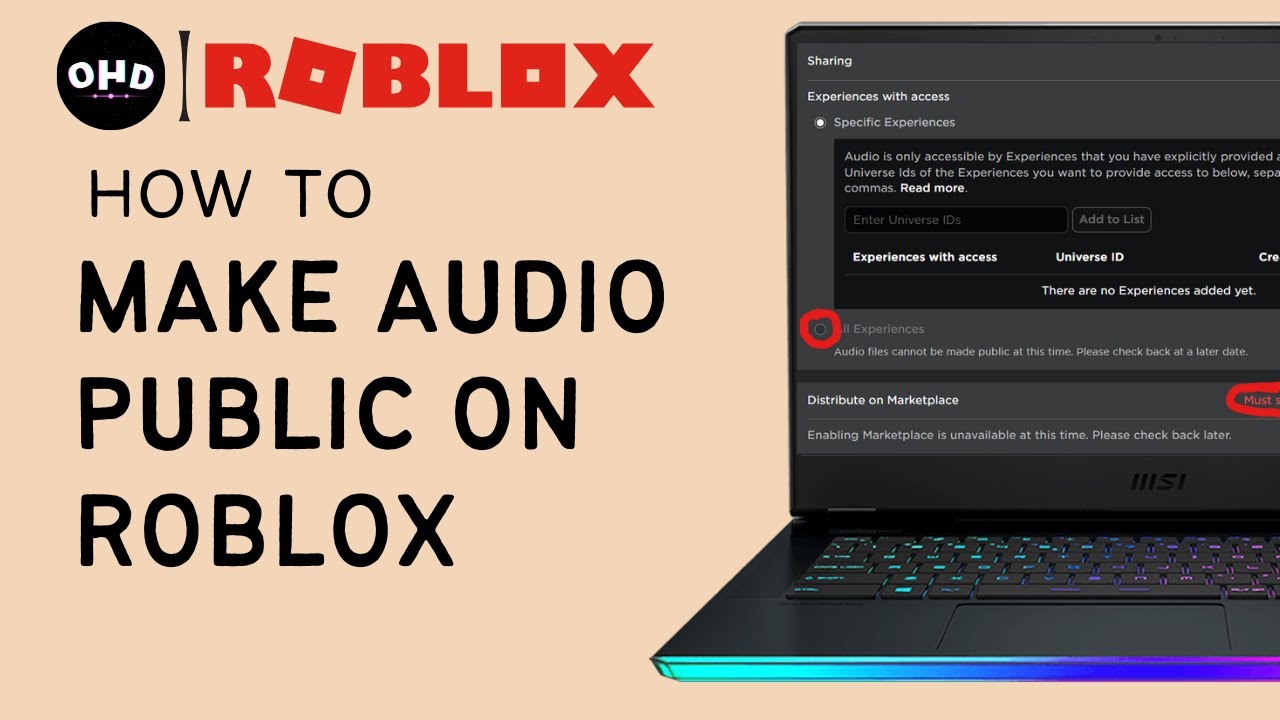


How To Add Your Own Music In Roblox Studio Quick Guide YouTube . How To Get A Soundboard On Roblox 2026 Best Soundboard For Roblox . How To Make Audio Public On Roblox Roblox How To Upload YOUR OWN . How To Make Audio In Your Roblox Game It Works YouTube . How To Create SOUND EFFECTS In Roblox Studio YouTube


How To Upload Audio To Roblox UPDATED 2026 YouTube . How To Upload Audio To Roblox 2026 Upload Music To Roblox Studio . How To Make Audio Public Roblox Full Tutorial YouTube . How To Make A Part Play Audio In Roblox Studio YouTube . Top 6 Voice Changers For Roblox 2026 Real Time Free To Use Voicemod Roblox Voice Changer


How To Upload Audio To Roblox 2026 Add Your Own Sounds Music . HOW TO MAKE AN AUDIO ON ROBLOX TUTORIAL Robux Required YouTube . How To Make Audio Maker Intro For Roblox BECOME A REAL AUDIO MAKER AND . Roblox How To Upload YOUR OWN AUDIO For Free YouTube . How To Make Audio On Roblox A Simple Guide Playbite How To Make Audio On Roblox


How To Upload Audio To Roblox 2026 YouTube . How To Make Audio Public On Roblox 2026 YouTube . Roblox Audio Your Guide To Finding And Using Sounds 3 Upload Audio Asset. HOW TO MAKE ROBLOX AUDIO PUBLIC 2026 FULL GUIDE YouTube . How To Find Sound ID On Roblox 2026 Step By Step Copy Song ID


How To Make A Sound Play When Clicked On A Part Roblox Studio . How To Upload Audio To Roblox 2026 Updated Guide YouTube . How To Add AUDIO In Roblox Studio TUTORIAL YouTube . How To Upload Audio To Roblox Studio Easy YouTube . How To Add Audio Music To Your Roblox Game YouTube